Your Twitch stream key is the unique code that connects your broadcasting software to your channel. When you paste it into a tool like OBS Studio or Streamlabs, it tells Twitch which account to send your video to. Without it, your software has no way to know where the stream should go.
This guide shows where to find your stream key in 2026, how to connect it to your software, and just as importantly, how to keep it private. A stream key is essentially a password for broadcasting, so treating it carefully matters. Twitch's interface can change over time, so menu names may differ slightly from what you see.
Where the stream key lives
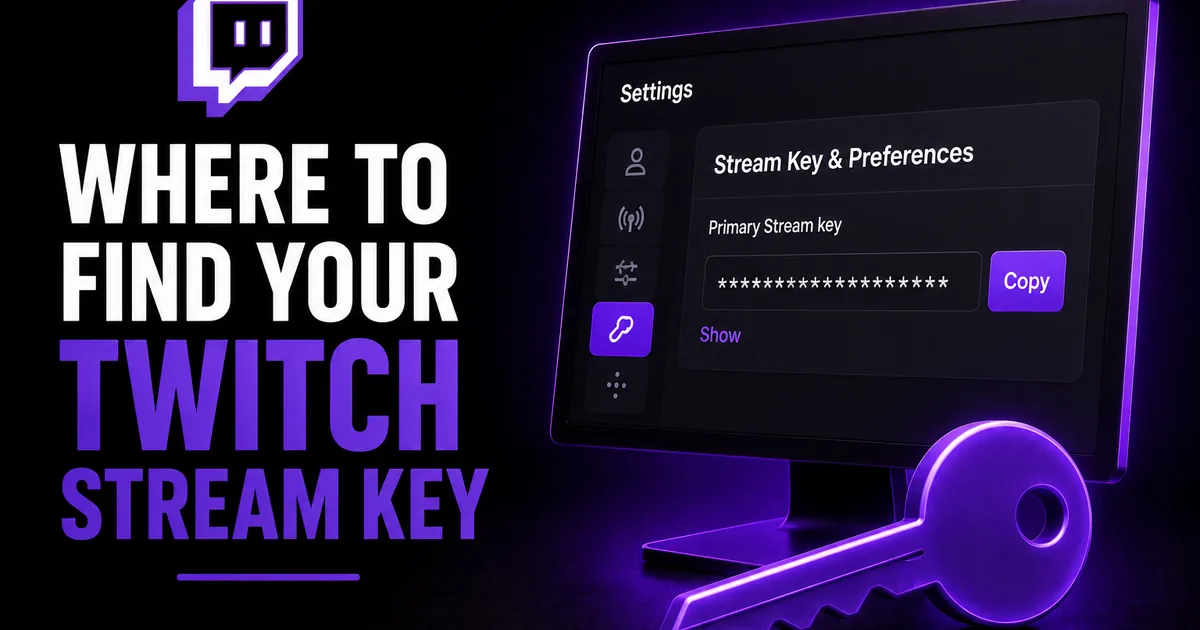
Your stream key is in the Creator Dashboard, under your stream settings. After logging in to Twitch on a desktop browser, open your profile menu and go to the Creator Dashboard, then look for the Settings area and the Stream section within it.
On that Stream settings page you will find the Primary Stream Key, usually shown as hidden dots with options to reveal or copy it. The reveal and copy controls let you grab the key without exposing it on screen any longer than necessary.
- Log in to Twitch on a desktop browser
- Open your profile menu and select Creator Dashboard
- Go to Settings, then the Stream section
- Find the Primary Stream Key with reveal and copy options
Connecting the key to your software
Once you have copied your stream key, paste it into your broadcasting software's stream settings. In OBS Studio, for example, you open Settings, choose the Stream section, select Twitch as the service, and paste the key into the Stream Key field. Streamlabs and similar tools follow a comparable flow.
Many tools now also offer a connect-account login option, which links to Twitch without you handling the raw key at all. If that option is available and you prefer it, it can be a simpler and safer route than copying and pasting the key manually.
- Open your software's Settings and Stream section
- Choose Twitch as the service
- Paste the key into the Stream Key field, or use connect-account login
- Save and run a quick test before going live
Why you must keep it private
Your stream key is sensitive because anyone who has it can broadcast to your channel as if they were you. That is why Twitch hides it by default and why you should treat it like a password rather than a setting to share casually.
The most common way keys leak is on stream itself. If you ever screen-share your broadcasting software's settings, or show your dashboard on camera, the key can be exposed to your whole audience. Before sharing your screen, close those settings windows and double-check nothing reveals the key.
- Never show your stream settings or dashboard on stream
- Do not paste your key into chats, emails, or screenshots
- Be cautious with third-party tools that ask for your raw key
- Treat the key like a password, not a shareable setting
How to reset a leaked key
If you think your stream key has been exposed, reset it. On the same Stream settings page where you found the key, there is an option to reset or generate a new key. Resetting immediately invalidates the old one, so anyone who had it can no longer use it.
After resetting, update the new key in your broadcasting software, since the old key will no longer work. Resetting your stream key does not affect your followers, your VODs, or your channel settings. It only changes the code your software uses to connect.
A quick word on growth
Setting up your stream key correctly is the technical foundation, but a smooth broadcast is only half the picture. Once you are live, new viewers still size up your channel quickly, and a healthy follower base helps you look established while you build momentum.
BoostHill provides Twitch viewers from real sources using only your public channel link, with no password required and a refill guarantee. It can support the live social proof on your stream as a head-start, but it does not replace good content or guarantee chat activity, follows, or long-term growth. Those come from showing up and streaming well.
Frequently asked questions
Read next: YouTube vs. Twitch for Streamers: A 2026 Comparison. For more, browse our Twitch guides or all posts by Eliza Rose.